Club Timer
Features

What Club Timer does

A walk through each part of the app, in the order you'll use it at a meeting.

Timing and signals

A timer you can read from across the room

The Timer tab shows the current speaker, a large clock inside a ring that fills toward red, and the three signal times underneath.

  • The ring changes colour at green, yellow and red, and the label above the clock says how long is left before the next signal.
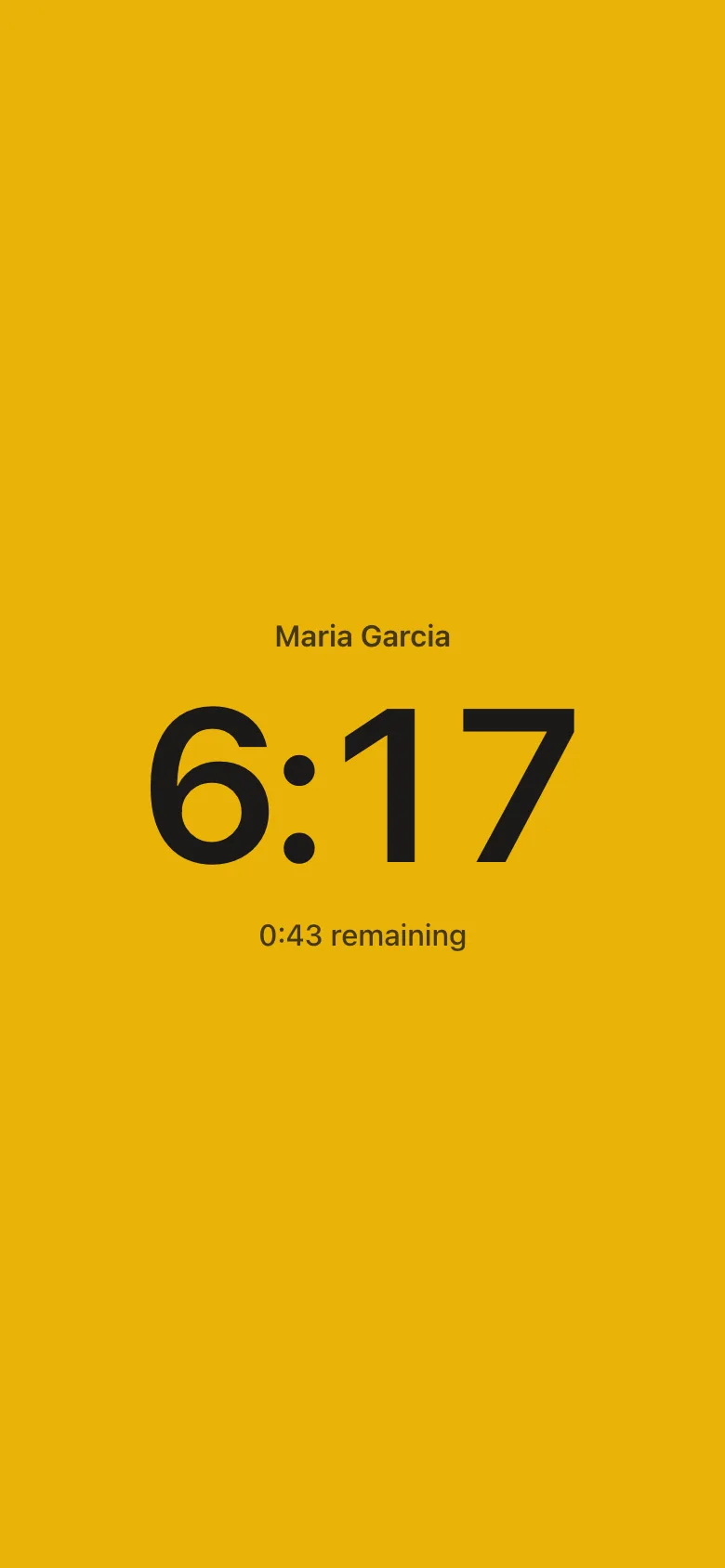
  • Signal mode turns the whole screen into the current colour, so you can hold the phone up for the speaker. Tap anywhere to go back.
  • Previous, Stop, Pause, Next and Restart sit at the bottom of the screen within reach of your thumb. Next stops at the end of the queue instead of looping back to the start.
  • Vibration and a beep when the signal changes are optional, and the screen stays on for the whole meeting.
5:00Green: minimum reached
6:00Yellow: start wrapping up
7:00Red: time to conclude
7:30Over: disqualified

Verdicts follow contest rules. A speech more than 30 seconds under green or 30 seconds or more over red is disqualified. Table Topics has no grace below the minimum, so an answer under 1:00 is disqualified.
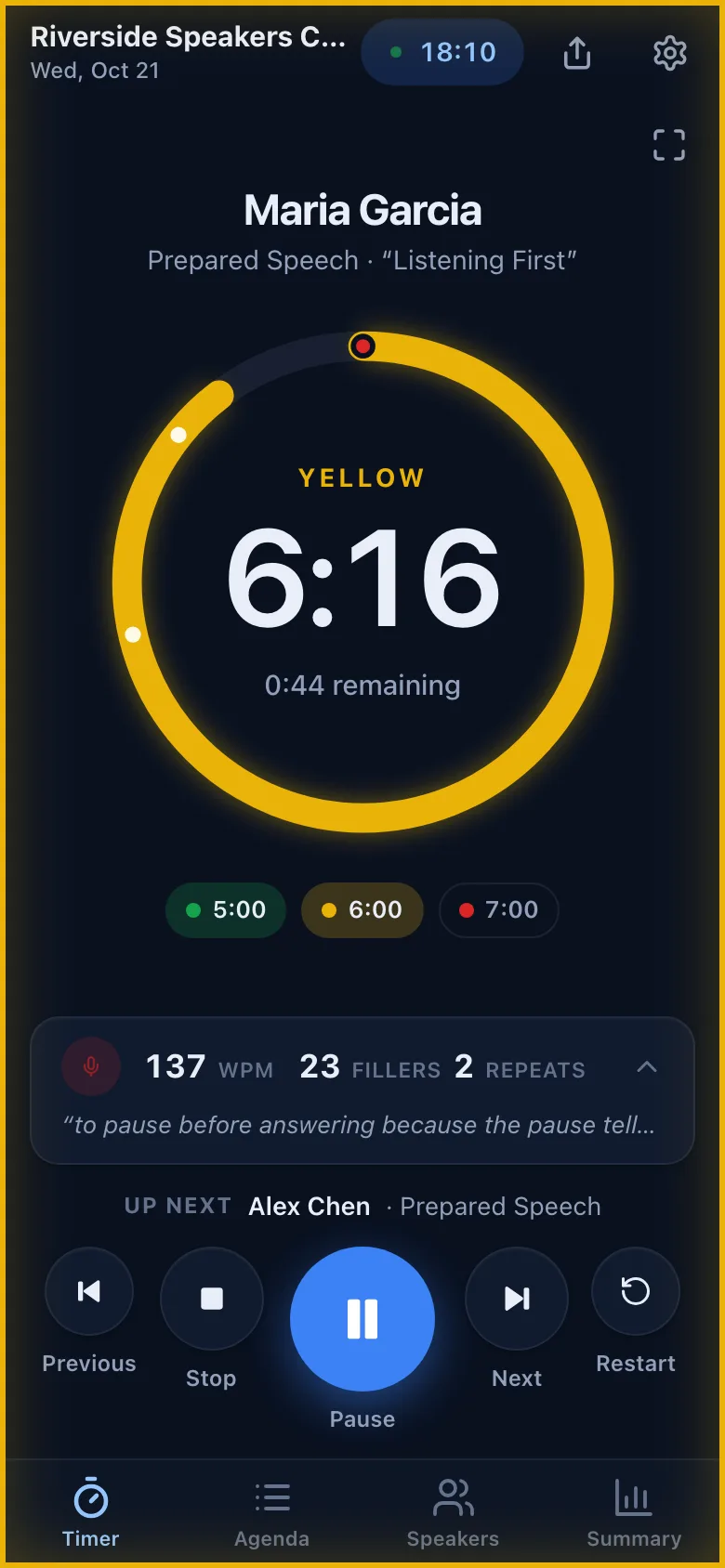
Timer tab showing Maria Garcia at 6:16, yellow signal, 0:44 remaining
Signal mode filling the screen with yellow
Speaker nudges

The speaker feels their signals

A speaker who has Club Timer on their phone can link it to their slot in the meeting. While they speak, the phone and watch tell them when the signal changes.

  • Tap "This is me" on your speaker card after joining the meeting. The app asks for notification permission the first time.
  • One tap at yellow, two at red, three when you're over. The notification says how long is left, for example "Yellow — 1:00 left".
  • On your wrist. When your iPhone is locked or in your pocket, the notification appears on your paired Apple Watch. Android phones send it to a paired Wear OS watch the same way. No watch app to install.
  • Timing yourself. The person running the timer can tap "This is me" too. That's handy for practising alone: start your speech, put the phone away and let the watch tell you when to finish.

Nudges need the iPhone or Android app. In a browser, "This is me" explains how to get the app instead.

YellowOne tap
RedTwo taps
Over timeThree taps, 30 s past red
Agenda import

Set up the meeting from the printed agenda

Most clubs print their agenda from the club website. Club Timer reads that PDF, or a photo of the paper copy, and builds the meeting for you.

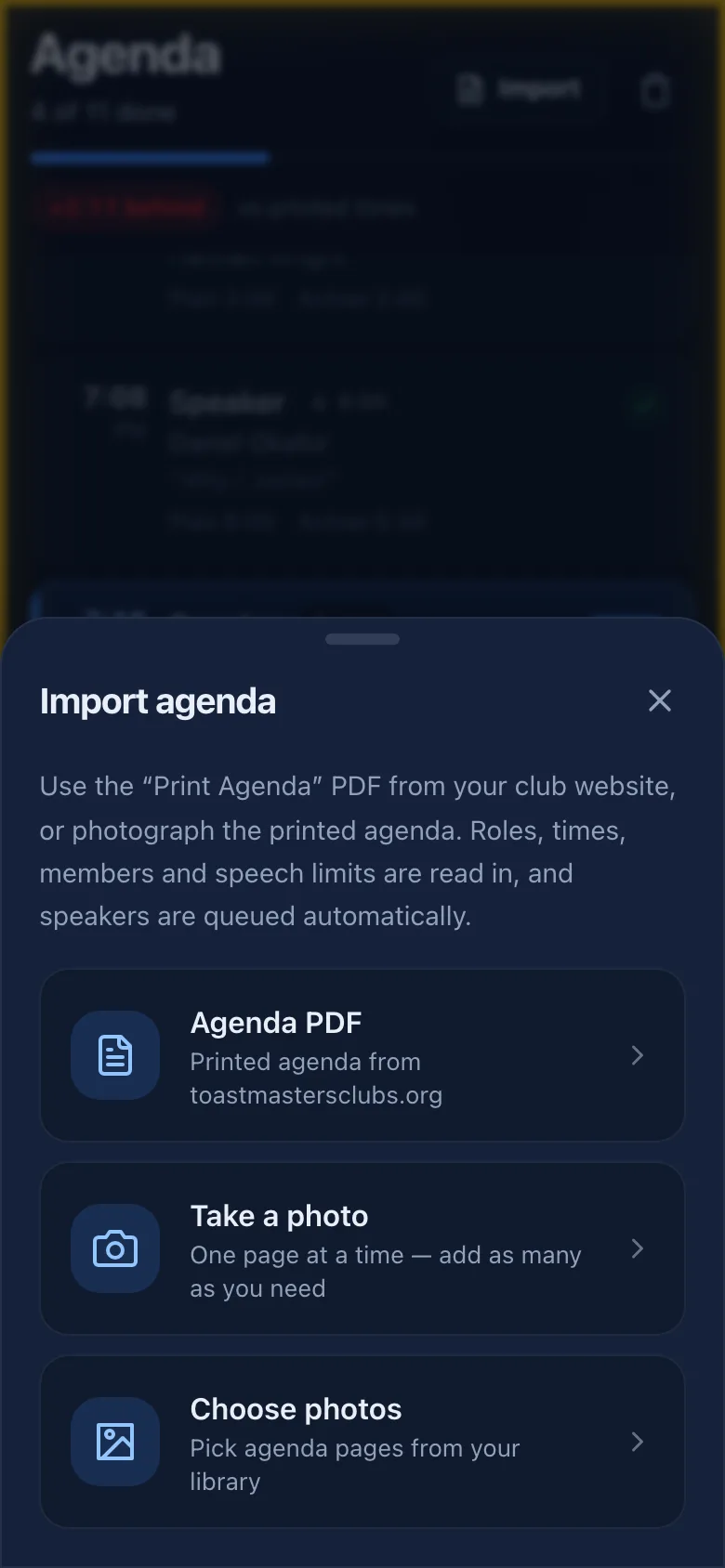
  • Agenda PDF, a photo or photos from your library. Photos are read on your device, one page at a time.
  • Check before you import. A review screen lists every role, member and time limit so you can fix a misread name first.
  • Speakers are queued automatically with the right speech type, evaluators are matched to their speakers, and five Table Topics slots are added. Backup speakers stay on the agenda without being queued.
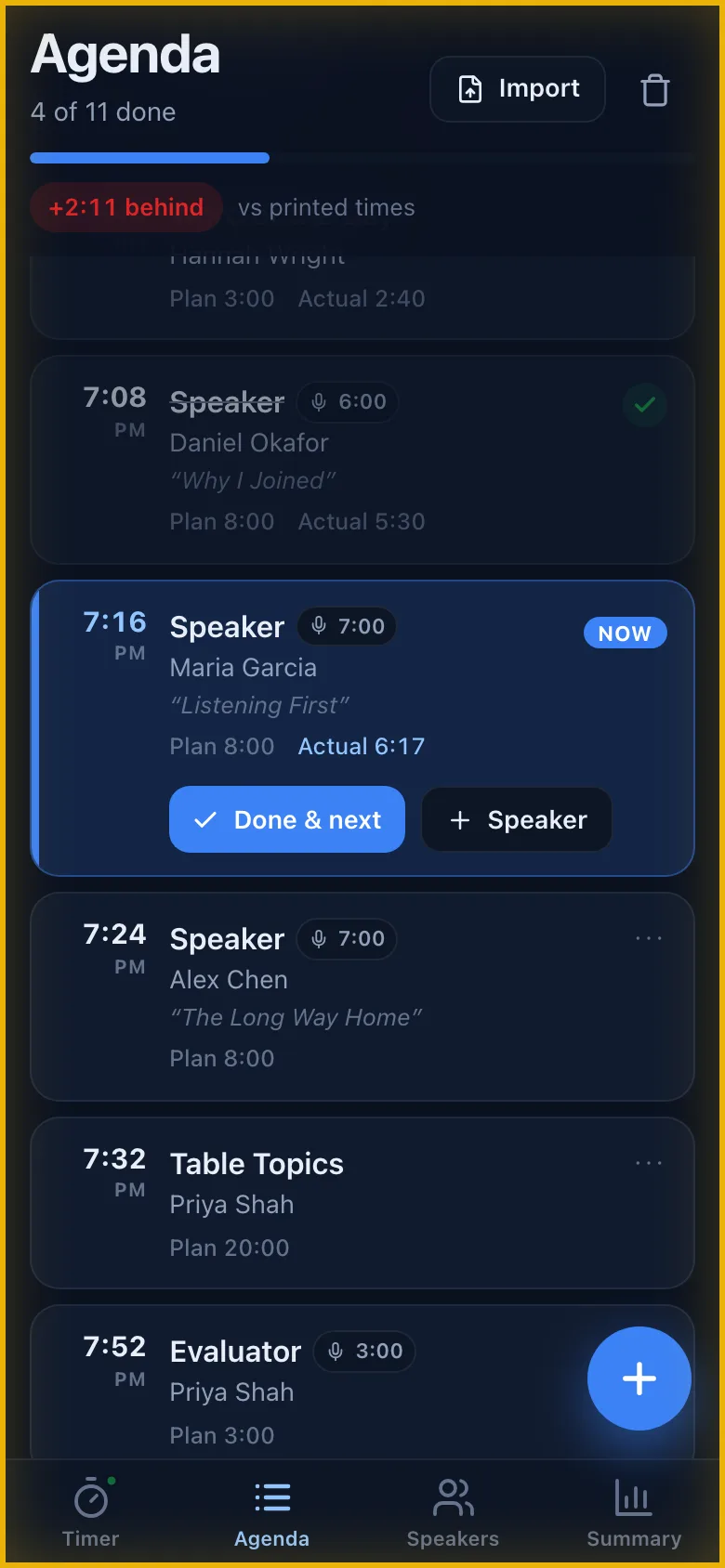
  • Stay on schedule. The Agenda tab tracks each item against its printed start time and shows whether the meeting is on schedule or running behind.
Import agenda sheet with Agenda PDF, Take a photo and Choose photos
Agenda tab listing meeting items with times and progress
Speakers and speech types

Every speech type, plus your own

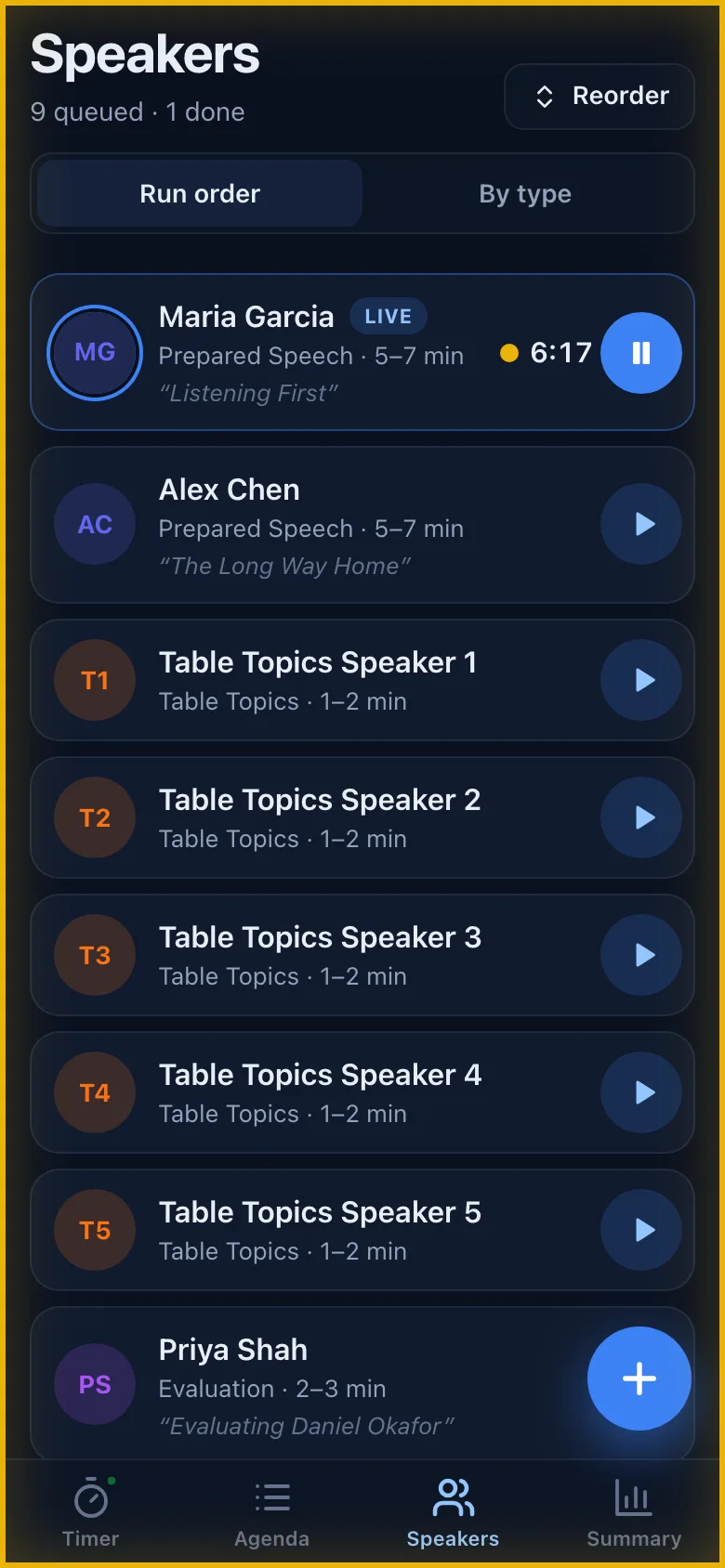
The Speakers tab holds the queue for the meeting. Group it by speech type or keep it in running order, and move speakers up or down when the agenda changes.

  • Built-in limits for Ice Breaker (4–6 min), Prepared Speech (5–7), Longer Speech (7–9), Extended Speech (8–10), Evaluation (2–3), Table Topics (1–2) and functionary reports (2–3).
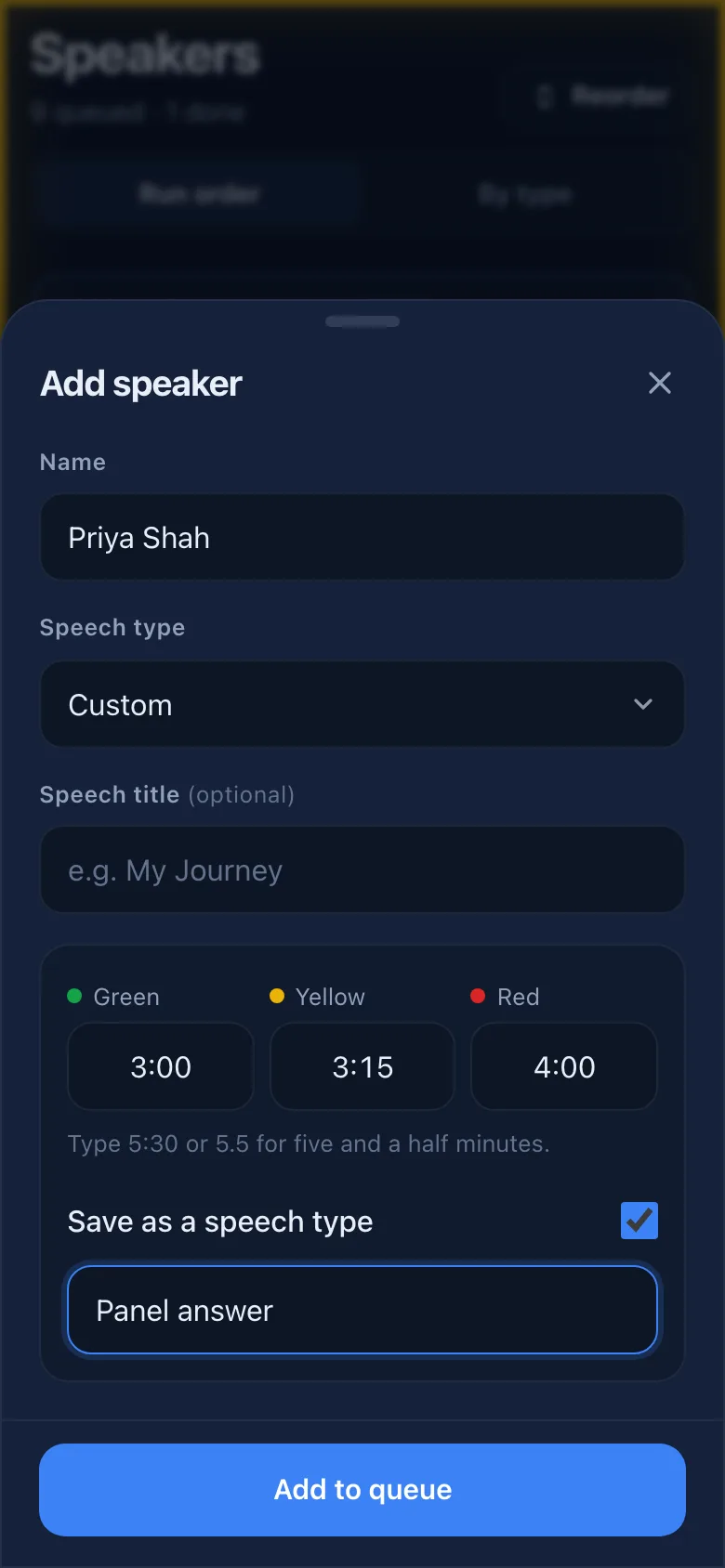
  • Custom limits let you set green, yellow and red yourself. Type 5:30 or 5.5 for five and a half minutes.
  • Save a speech type you use often, such as a panel answer or a contest round, and pick it from the list next time.
  • Clone a speaker in one tap. Cloning Table Topics Speaker 5 adds Table Topics Speaker 6 with the same limits.
Speakers tab with the queue grouped by speech type
Add speaker form with custom green, yellow and red times and Save as a speech type
Live sharing

The meeting, live on every member's phone

Share the meeting and members can follow along on their own devices, in the Club Timer app or any web browser.

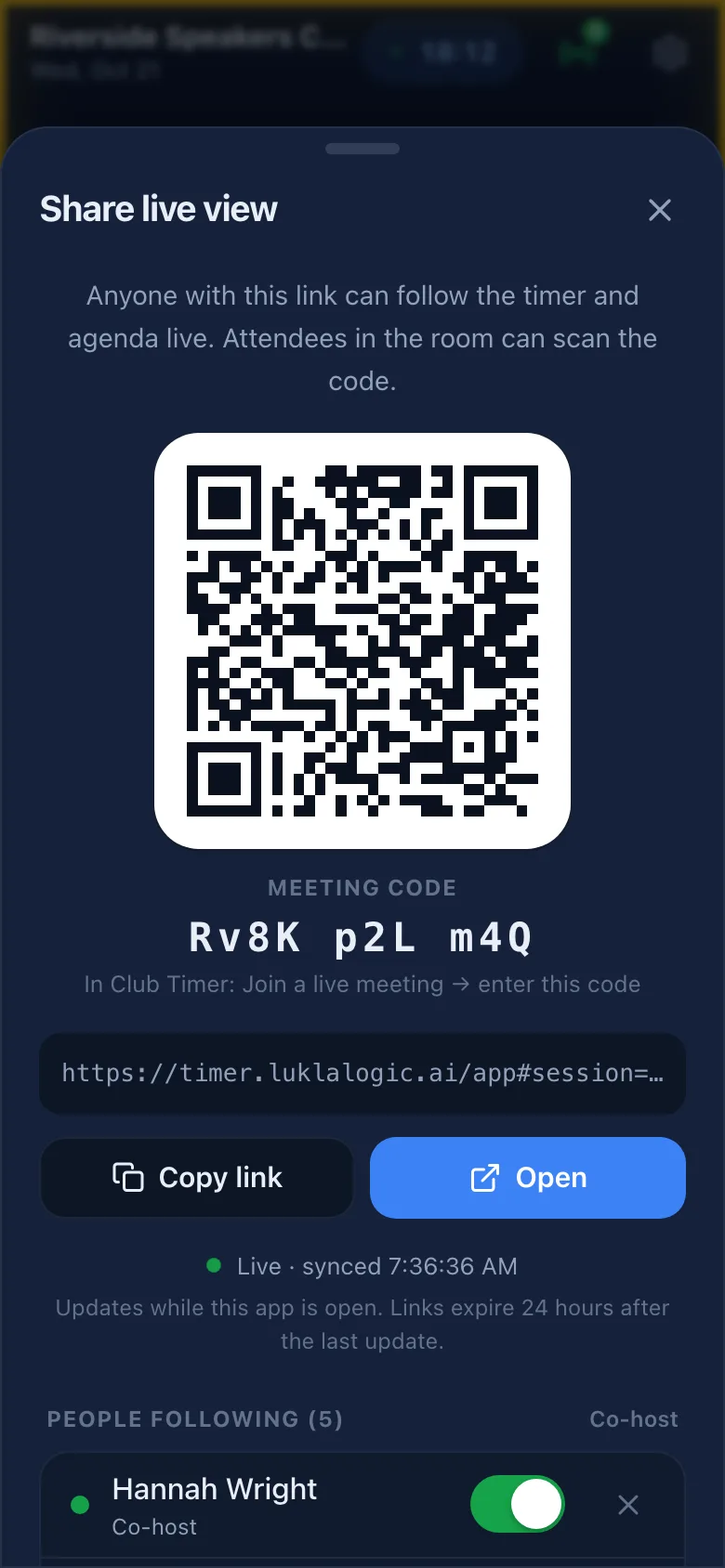
  • Three ways to join: scan the QR code, open the link, or type the meeting code in Club Timer under "Join a live meeting".
  • Members see everything: the running timer, the agenda, the speaker queue and the summary. Their view is read-only, so nothing changes by accident.
  • People following lists everyone who joined, with their name and whether they're online. Turn on Co-host for anyone who should help run the meeting; co-hosts can start the timer and edit speakers and the agenda from their own phone.
  • You stay in control. Remove anyone, take co-host away at any time, and tap Stop sharing at the end. The shared copy is deleted from our server straight away.
Share live view sheet with a QR code, the meeting code, the link and People following with co-host switches
Speech analysis

A head start for the Ah‑Counter and Grammarian

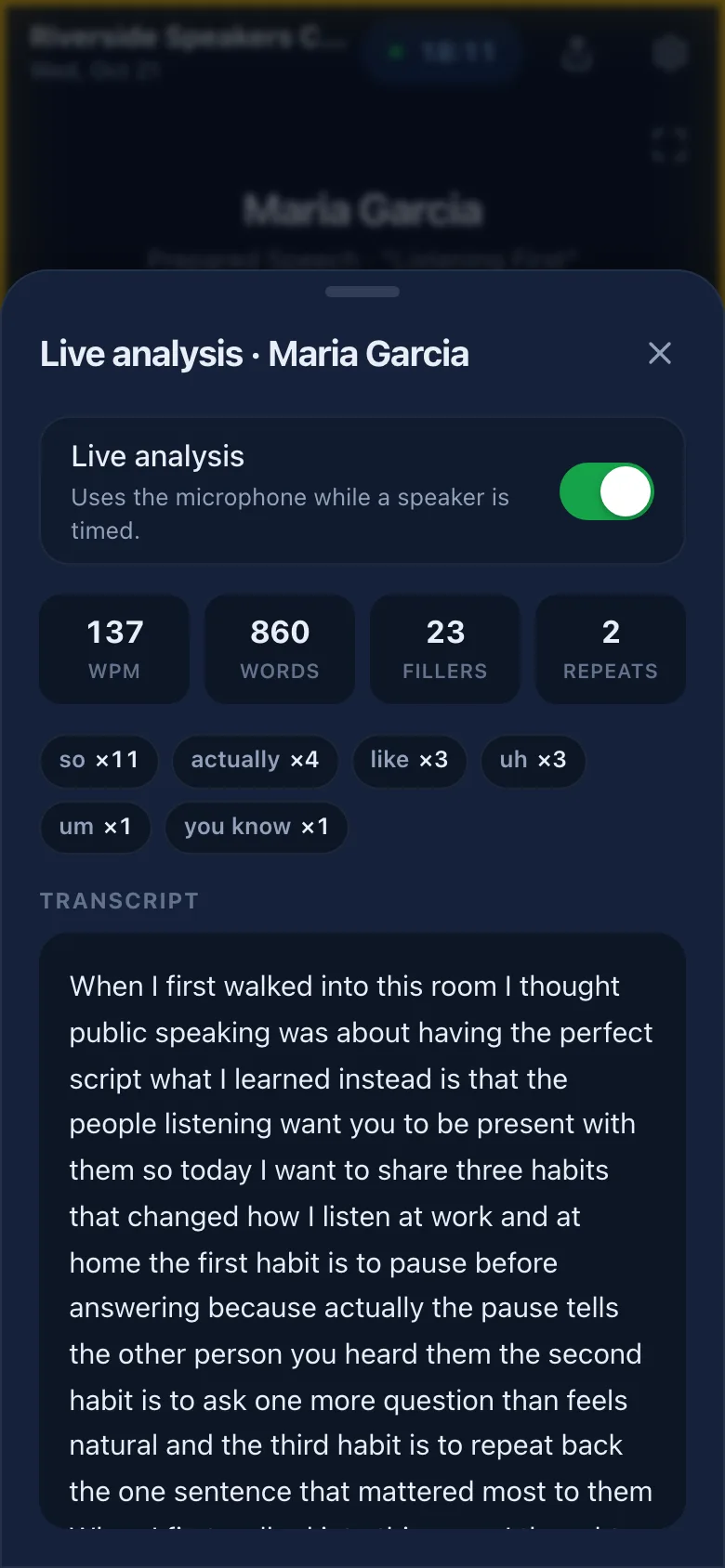
With Live analysis on, Club Timer listens while a speaker is timed and counts as they go.

  • Words per minute. Around 120 to 150 is a relaxed speaking pace.
  • Filler words and crutch phrases such as "um", "uh", "you know" and "like", with a count for each.
  • Repeated words like "the the", and a running transcript you can scroll back through.
  • On your device. The apps use the phone's built-in speech recognition, and transcripts are never sent to us. In a browser, use Chrome or Edge.

Speech recognition depends on the microphone and the room, so treat the counts as a guide. You can turn Live analysis off and the timer works the same.

Live analysis panel with words per minute, filler counts and transcript
Meeting summary

The Timer's report, written for you

End the meeting and the Summary tab has everything the Timer reads out at the end.

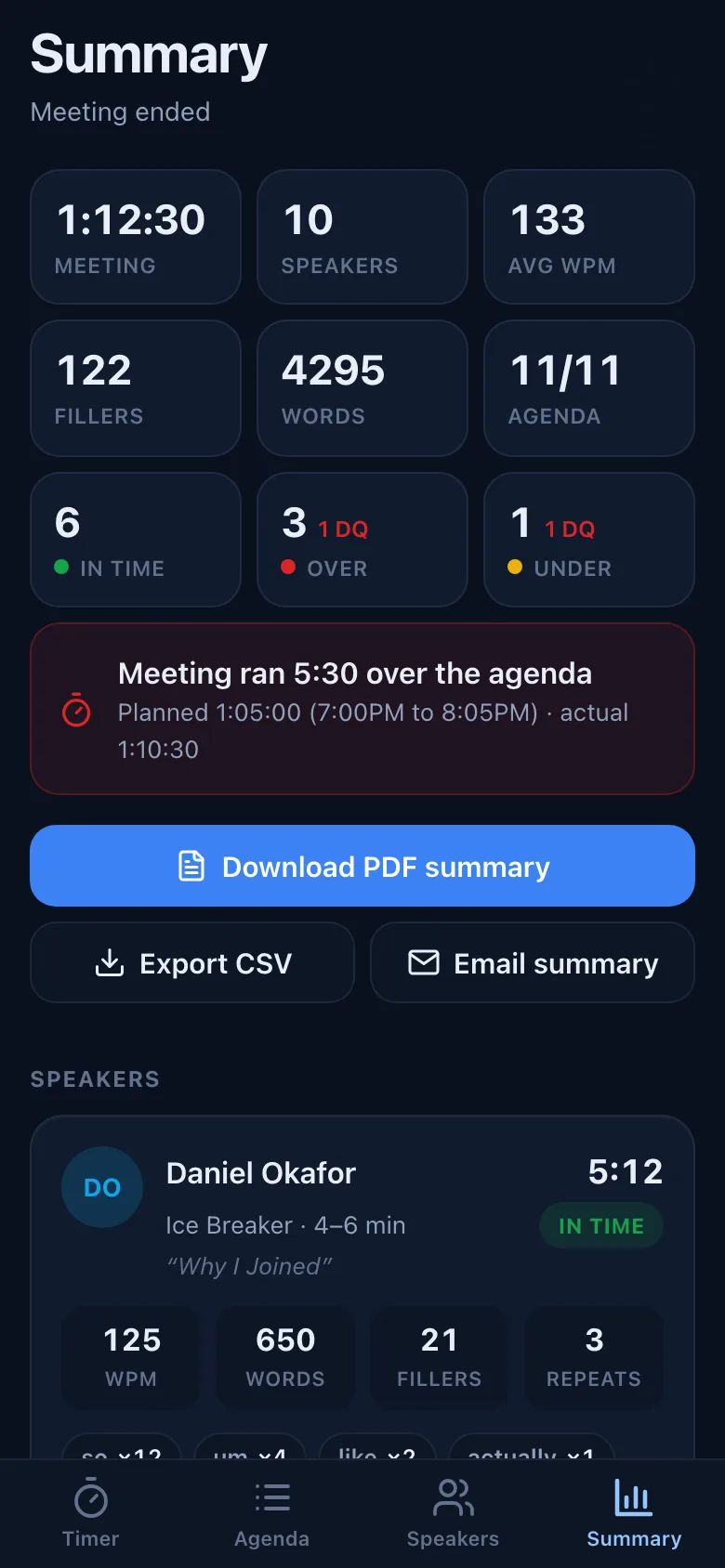
  • Each speaker's time and verdict: in time, short, over or disqualified, with their pace and filler count.
  • Totals at the top: how many speakers were in time, over or under, and how long the meeting ran.
  • Against the agenda: if you imported an agenda, the summary says whether the meeting ran over its planned time and by how much.
  • Export the summary as a PDF or CSV file, or send it by email.
Meeting summary with speaker times, verdicts and totals

Try it at your next meeting

Club Timer is free and runs in your browser. Questions? The FAQ covers the common ones.

Coming sooniPhone app Coming soonAndroid app